
1
Caution
- The DSI port of OSOYOO 5 inch DSI screen is the different from Raspberry Pi official 7 inch DSI screen. DSI cables for OSOYOO 5-inch DSI screen are different from Official Raspberry Pi DSI cable. Please pay more attention to the metal connectors of two side when you choose other DSI cable for OSOYOO 5-inch DSI screen.)
- Please make sure that your TF card (Micro SD) has enough space to write system image
- Do not even touch your Raspberry Pi board when power is on or your hand has static charge (you can move static charge by touching a metal tap)
Introduction
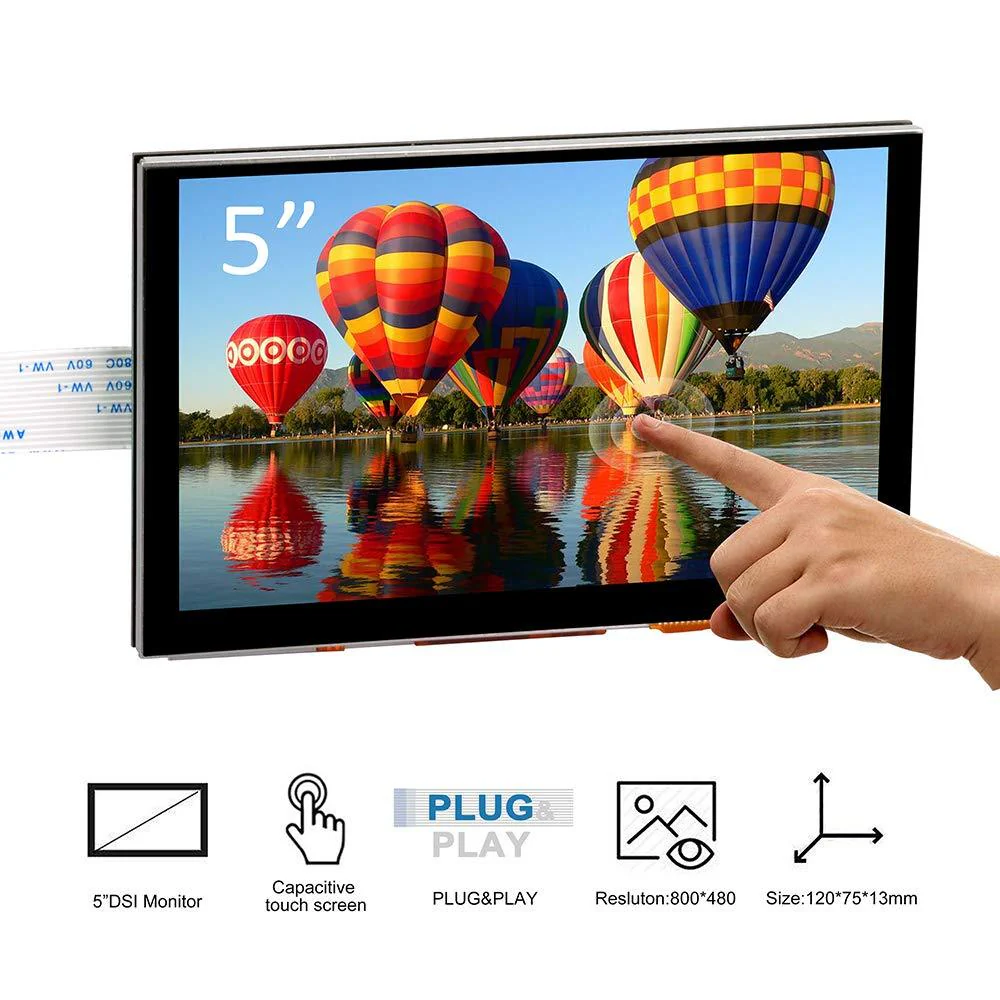
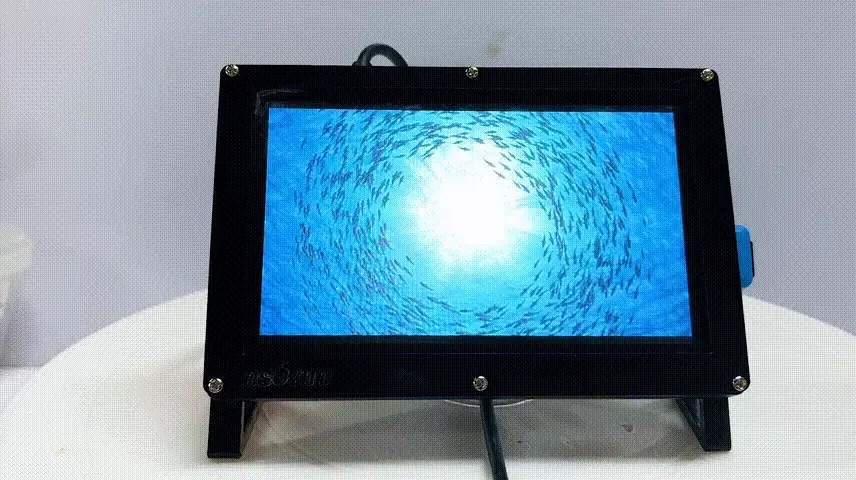
The 5″ LCD is an LCD display which connects to the Raspberry Pi through the DSI connector. It is capacitive touch LCD. It is a plug-and-play device which doesn’t need install driver. The physical resolution of this LCD display is 800*480.
Feature
- Use DSI interface to connect Raspberry Pi board;
- There are two LCD type for OSOYOO 5″ DSI screen: IPS screen and TN screen
- The refresh frequency is 60HZ;
- Physical resolution is 800*480, 24-bit colour. Support adjusted resolution from 800×480 to 1920×1080
- 5 finger capacitive touch (but Raspbian only support 1 finger);
- Plug and play. No driver needed.
- Support system Raspberry Pi OS, Ubuntu, Kali, RetroPie, OctoPrint and so on (Raspberry Pi 5 only support Raspberry Pi OS BOOKWORM Version)
- Strong anti-interference;
- Ultra-low power, ultra-long distance lossless transmission,
- Automatically sleep;
- IPS screen viewing angle: 85, 85, 85, 85 degree
TN screen viewing angle:60, 60, 60,60 degree
Parameter
Download Size dimension datasheet from
V2.0 screen datasheet:
https://osoyoo.com/driver/dsi_screen/5inch-dsi-v2screen.pdf
V3.0 screen datasheet:
https://osoyoo.com/driver/dsi_screen/5inch_dsi_v3screen.pdf
Using guide
Parts Needed
You will need the following parts:
- 1x Raspberry Pi 2/3/3B+/4/5
- 1x Power USB adapter
- 1x Power USB cable
- 1x OSOYOO 5″ DSI touch screen with DSI cable
- 1x Micro SD card (new and 16GB up)
- 1x TF card reader
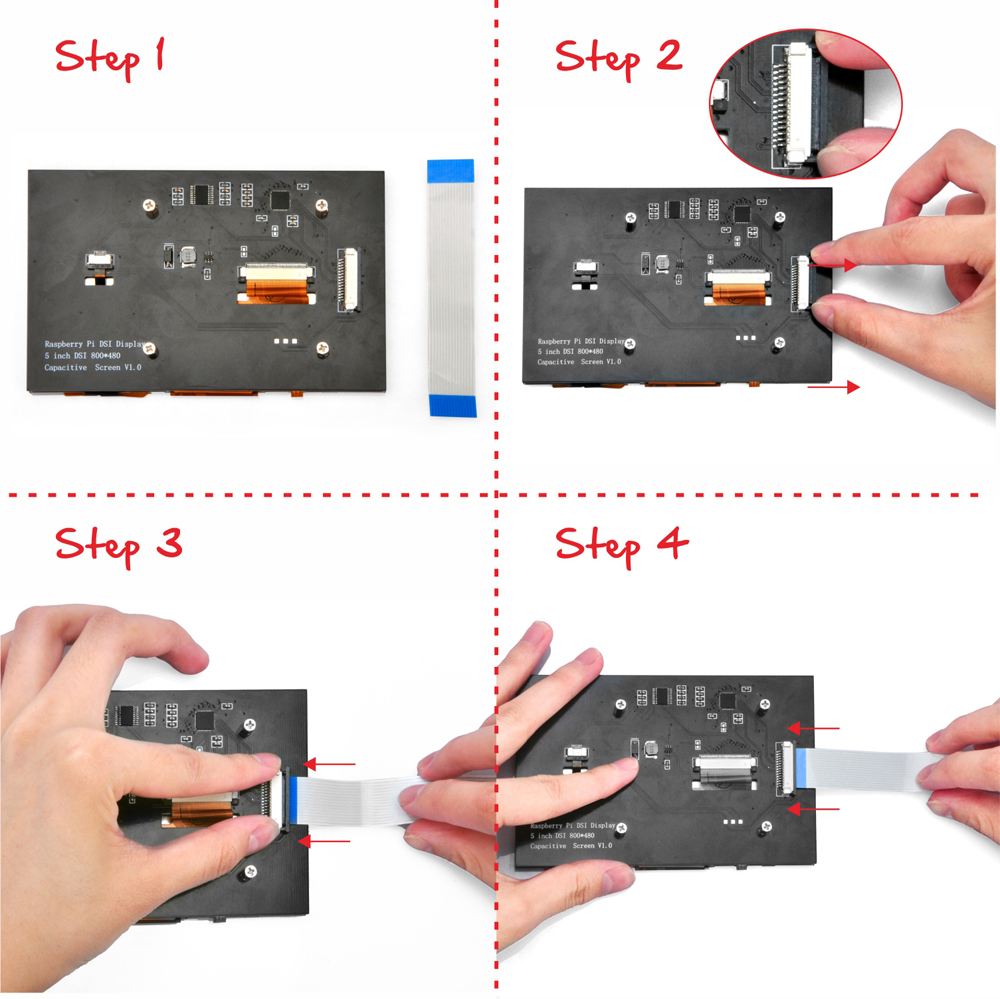
How to install DSI cable?
How to install OS?
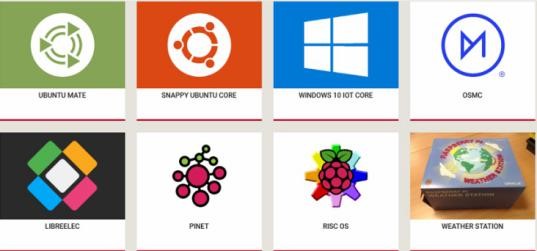
5″ DSI LCD supports IMG system such as Raspbian, Ubuntu MATE, Snappy Ubuntu Core, OSMC, and Windows 10 IOT Core and so on.
To install OS on Raspberry Pi, Please follow as below:
Firstly, Download IMG system in your computer from the raspberry pi official website: https://www.raspberrypi.org/downloads/
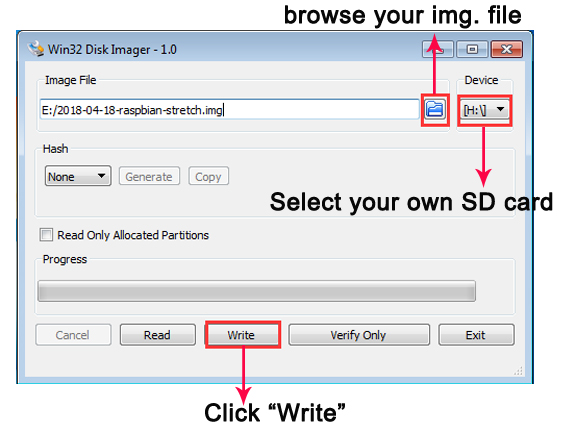
Secondly, Unzip the IMG system, and open your imager writer (recommend win32diskimager from: https://sourceforge.net/projects/win32diskimager/);
Thirdly, Insert the SD card into the card reader, and connect with computer, and select the image system and the device, and then click “write”, as below:
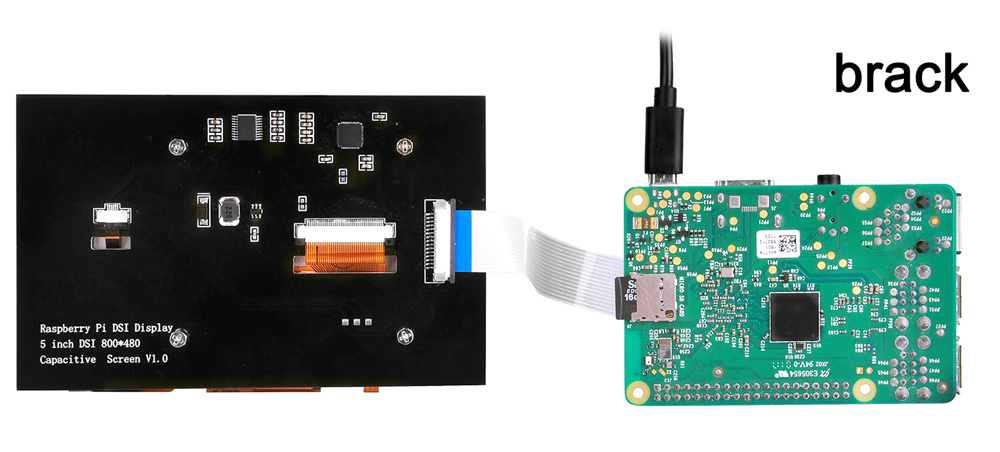
Fourthly, Insert the SD card into raspberry pi board and assemble 5″ DSI touch screen as below:
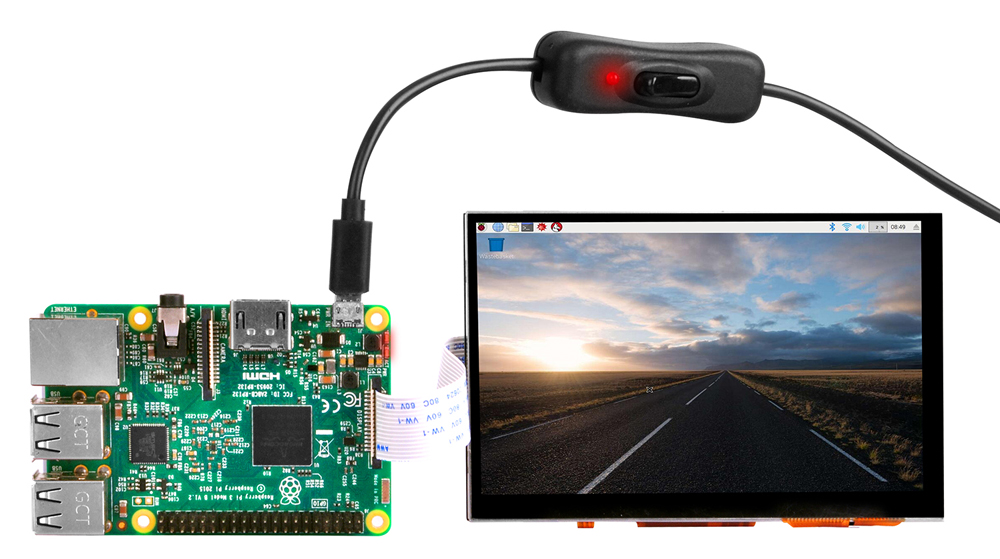
At last, Power up wait for the system to start (Note: Do not even touch your raspberry pi board when power is on or your hand has static charge):
For latest Ubuntu Desktop OS, you need to change the boot config file by running following command:
sudo nano /boot/firmware/config.txt
Above command will open the config.txt file, add following words into the file if you can find them:
display_auto_detect=1
use # to comment out following line in config.txt
dtoverlay=vc4-kms-v3d
make above line like this:
#dtoverlay=vc4-kms-v3d
Advanced course
How to adjust virtual resolution:
Note: This method only supports Raspberry Pi Legacy OS. If working with Raspberry Pi BOOKWORM OS, the DSI screen cannot adjust resolution.
The physical resolution is 800*480, but you can adjust the resolution form 800×480 to 1920×1080. Open micro SD card which you have installed IMG system and then open “/boot/config.txt” via Notepad++, and find the following lines:

If you like 1920*1080, you can adjust it as below and save this file:
framebuffer_width=1920
framebuffer_height=1080
Note: If you use Raspberry Pi 4, you also need to comment the lines in “/boot/config.txt” : #dtoverlay=cv4-kms-v3d.
How to add a virtual keyboard on to the screen?
(We test this on Raspberry Pi buster. For the latest BOOKWORM version, it comes with a virtual keyboard)
The touch screen can be used as a mouse device. When we need to input text data to the Raspberry Pi board, normally we have to connect a USB keyboard to Pi and this is really inconvenient.
Is there any solution which can use the touch screen itself to work as a text input device, same as a mobile phone?
The answer is Yes. You can install a virtual keyboard to replace the USB keyboard.
Here are the instructions:
Step 1) Install matchbox-keyboard by typing following commands in your pi terminal:
sudo apt update
sudo apt upgrade
sudo apt install matchbox-keyboard
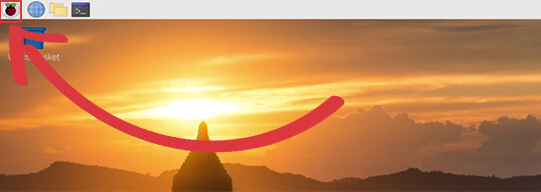
Step 2) Click Raspberry Pi icon in the top-left corner as the following:
Step 3) Click Accessories->Keyboard as following:
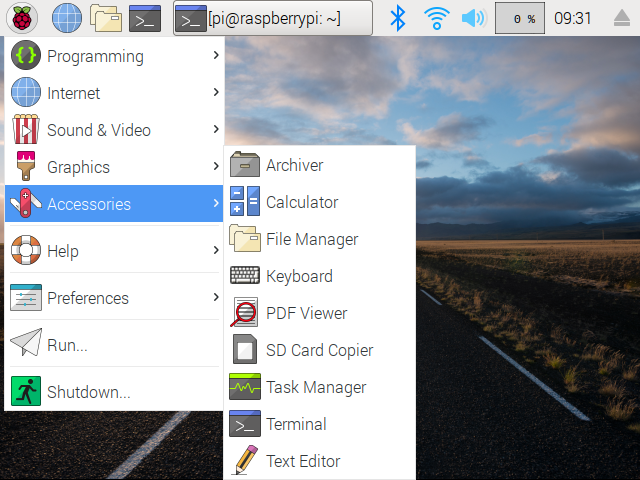
You will see a pop-up virtual keyboard as following:
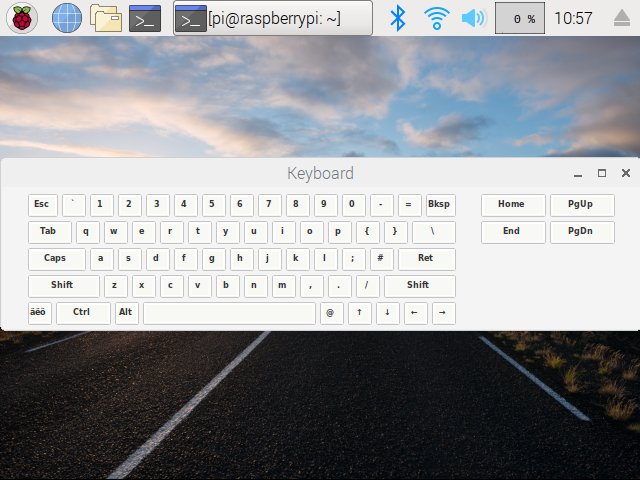
If you have want more detail about matchbox-keyboard installation, read this link:
https://osoyoo.com/2019/04/09/osoyoo-7inch-hdmi-touchscreen-keyboard-matchbox-keyboard/
How to adjust rotation of display:
Note: This method works with Raspberry Pi Legacy OS.
LCD displays have an optimum viewing angle, and depending on how the screen is mounted it may be necessary to change the orientation of the display to give the best results. By default, the Raspberry Pi display and Raspberry Pi are set up to work best when viewed from slightly above, for example on a desktop. If viewing from below, you can physically rotate the display, and then tell the system software to compensate by running the screen upside down.
To flip the display, run following command firstly:
sudo nano /boot/config.txt
According to the rotation you want to flip, please choose to add the lines in this file:
1) For 0 degree rotation: (no additional entries – default setting)
2) For 90 degree rotation (top to right):
display_lcd_rotate=1
dtoverlay=rpi-ft5406,touchscreen-swapped-x-y=1,touchscreen-inverted-x=1
3) For 180 degree rotation (upside down):
display_lcd_rotate=2
dtoverlay=rpi-ft5406,touchscreen-inverted-x=1,touchscreen-inverted-y=1
4) For 270 degree rotation (top to left):
display_lcd_rotate=3
dtoverlay=rpi-ft5406,touchscreen-swapped-x-y=1,touchscreen-inverted-y=1
After you added the two lines, press Ctrl-X then Y, Then “Enter” to save the file and then type sudo reboot to restart Raspberry Pi.
This will flip the LCD and the touch screen, compensating for the physical orientation of the display
How to adjust the brightness:
Method 1)
The following operations are based on Raspbian
(1) Run the following command in terminal to switch user permission as administrator
sudo su root
(2) Run the follwing command to adjust brightness of display (change the number 100 to any number from 0 to 255)
echo 100 > /sys/class/backlight/rpi_backlight/brightness
Note: If failing to adjust the brightness, please check the line “disable_touchscreen=1 ” in /boot/config.txt and comment it out “#disable_touchscreen=1 #”
Method 2)
Step 1)Run following command to install brightnessctl software:
sudo apt install brightnessctl
Step 2)Run following command to change brightness
sudo brightnessctl set 100%
the set value can change from 0% (darkest) to 100% (brightest)
Reviews
There are no reviews yet.